BlueGolf 360 allows administrators to organize contacts by assigning them to Standard or Custom Groups. This feature helps streamline communication and contact management within the system.
Steps to Assign a Contact to a Group
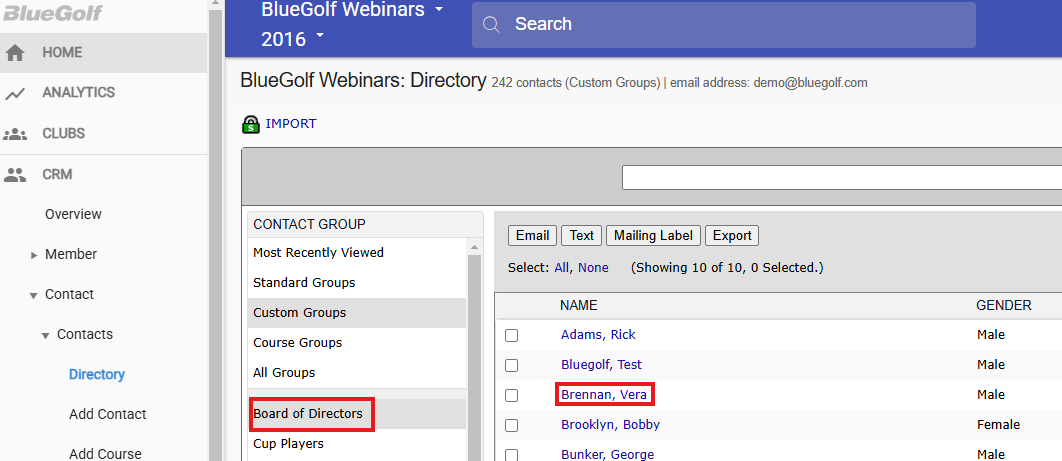
Navigate to the Contact Directory
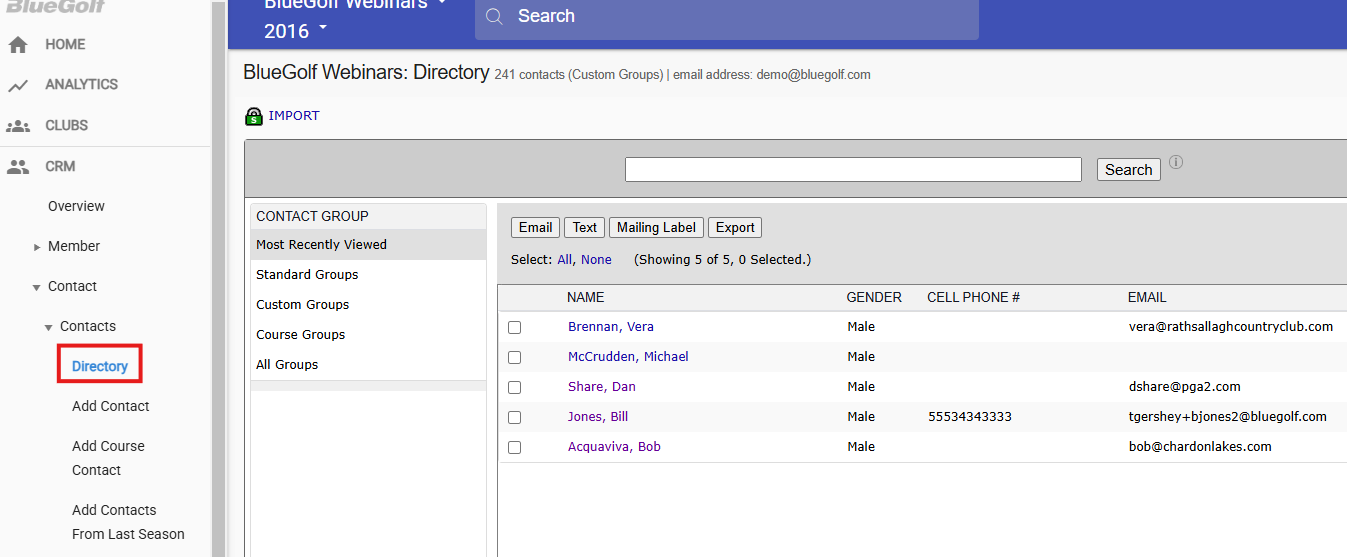
- From the BlueGolf 360 console, go to the CRM tab, and select Contacts, and Directory.
Locate the Contact
- Use the contact groups tabs to browse existing groups.
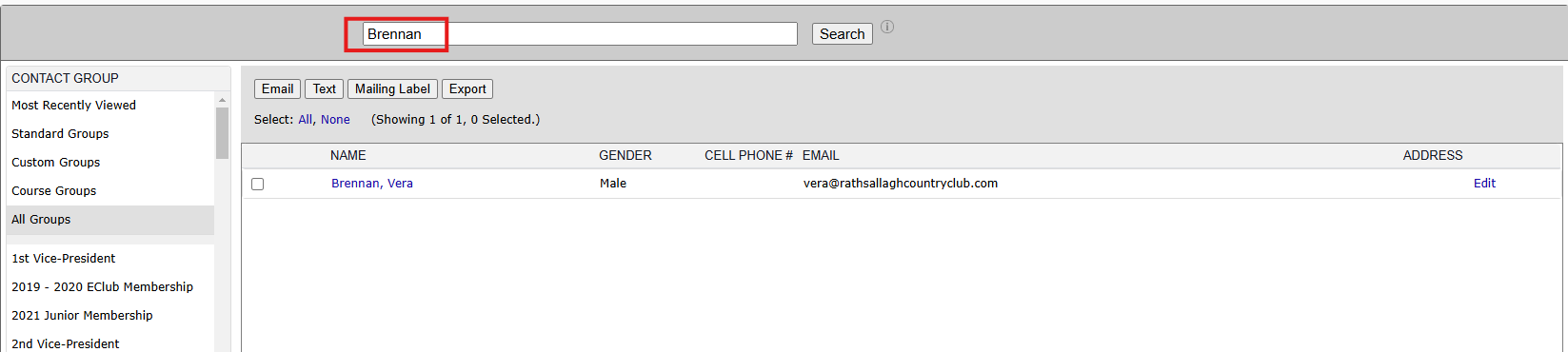
- Or, use the search function to find a specific contact by name.
Edit the Contact Profile
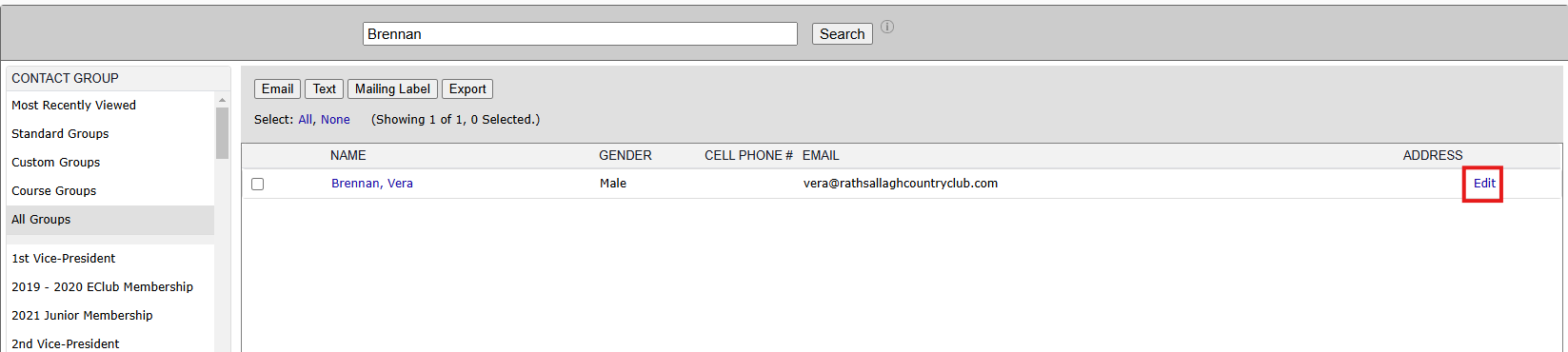
- Once the contact is found, click Edit next to their name.
Assign the Contact to a Group
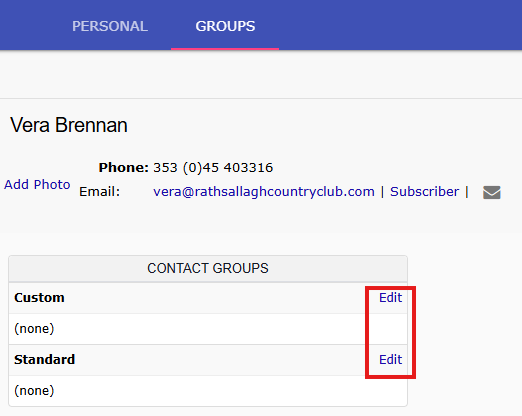
- Select the Groups tab within the contact profile.
- Click Edit next to either Custom Groups or Standard Groups.
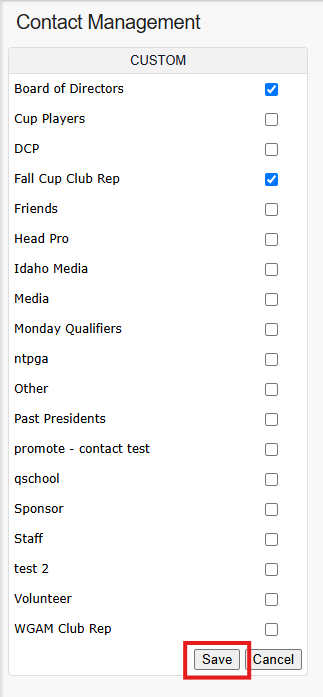
- Check off the appropriate existing group(s) to assign the contact.
- Click Save to apply the changes.
Confirmation
- The contact is now assigned to the selected group(s) and will be included in relevant communications and reports.
Was this article helpful?
That’s Great!
Thank you for your feedback
Sorry! We couldn't be helpful
Thank you for your feedback
Feedback sent
We appreciate your effort and will try to fix the article