Add a Tournament to the Schedule in BlueGolf 360
Throughout the season, you may need to add additional tournaments to your schedule. This process allows administrators to quickly create new tournament slots that can be configured at a later time.
Access the Tournament Schedule
From the homepage of the console, navigate to:
- Tournaments (left-hand menu)
- Select the appropriate program name
- Click Manage
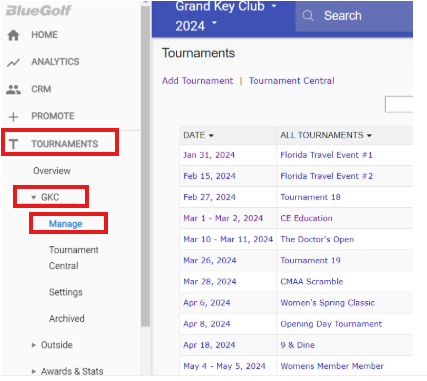
This will bring you to the full tournament schedule view.
Add Tournament Slots
In the top left corner of the schedule, select “Add Tournament.”
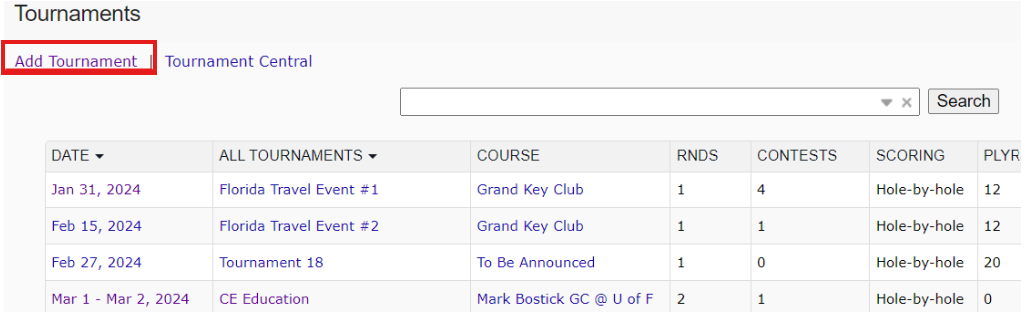
You will have the option to:
- Add multiple tournament slots at once
- Choose whether the tournaments are visible or hidden
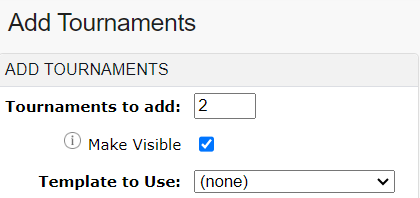
After making your selections, click Save.
Confirm Tournament Creation
Once added, the new tournament slots will appear on the schedule based on the date they were created (for example, April 11).

At this stage, the tournaments are now available and ready to be accessed and fully set up.
Was this article helpful?
That’s Great!
Thank you for your feedback
Sorry! We couldn't be helpful
Thank you for your feedback
Feedback sent
We appreciate your effort and will try to fix the article